



MATE X display upgrade: FabiRide Dash Pro
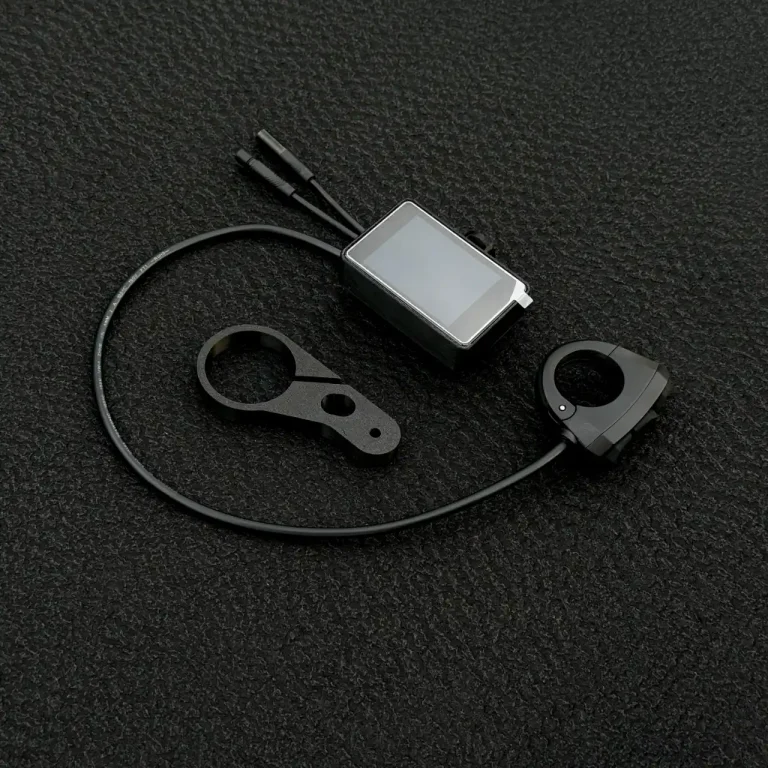
FabiRide Dash Pro is a colour touchscreen display for the MATE X folding e-bike. It replaces the stock MATE X display and buttons, plugs in between the bike's own connectors and adds what the factory screen never had: settings in an app, a speed limit you choose, navigation on bike paths and every ride recorded.
The short answer
Yes, FabiRide Dash Pro fits the MATE X folding fat e-bike. On the stock bike it reads the grey factory controller and recognises it by itself during setup. On a MATE X converted to the green ASI BAC855 it also opens up the controller's advanced settings, capped at 1500 W to protect the hub, spokes and brakes the bike was built with.
The MATE X freewheels and has no regenerative braking, so the display leaves out everything to do with regen. Speed and distance come from the true rolling size of the fat tyre, so the numbers you read are the real ones.
Updated 19 October 2026
MATE X display replacement
A cracked, faded or simply basic screen is the most common reason riders look for a MATE X display replacement. Dash Pro takes the place of the stock display and its buttons. Because the harness plugs in between the stock display and throttle connectors, nothing on the bike is cut, and taking it off leaves the MATE X exactly as it was.
Instead of a menu on a small screen, you get a bright colour touchscreen, three buttons under your left thumb and the FabiRide app as your MATE X app. As a result, a MATE X display replacement with Dash Pro adds far more than a new screen, as the table shows.
| Feature | Stock MATE X display | FabiRide Dash Pro |
|---|---|---|
| Speed, battery and assist level | Yes | Yes |
| Colour touchscreen | No | Yes |
| Turn by turn navigation on bike paths | No | Yes |
| Live map with the riders you are out with | No | Yes |
| Speed limit for each rider, set from your phone | No | Yes |
| Crash detection with an SOS message | No | Yes |
| Music and calls from the handlebar | No | Yes |
| Every ride recorded and replayable | No | Yes |
| Range estimate that learns your riding | No | Yes |
What the MATE X display does, controller by controller
Which features you get depends on the controller box on your MATE X: the grey box it came with, or the green ASI BAC855 some riders fit instead.
| Feature | Stock, grey controller | ASI BAC855, green controller |
|---|---|---|
| Assist levels on the handlebar buttons | Yes | Yes |
| Pedal assist settings in the app | Yes | Yes |
| Lights from the bars | Yes | Yes |
| Speed limit you set, lifted in the app | Yes | Yes |
| Raise the factory ceiling | Yes | Yes, up to 1500 W |
| Advanced controller settings | No | Yes |
| Motor temperature | No | Yes |
| Regenerative braking | No, the MATE X freewheels | No, the MATE X freewheels |
| Map, navigation, tracks and crash alerts | Yes | Yes |
MATE X display settings, from your phone
On the stock bike, the MATE X display settings live in a menu on the display itself. With Dash Pro, however, the assist level sits on the handlebar buttons and everything else moves to the app: pedal assist settings, lights, units and the speed limit. So when you change a MATE X setting in the app, the bike follows straight away.
First, the setup wizard asks which MATE X you have, the stock bike with the grey box or the ASI BAC855 with the green box. Then it shows only the MATE X display settings that box really supports, so you never meet a setting that does nothing. On the ASI version that also includes the controller's advanced settings, always held at 1500 W or less.
A MATE X speed limit that only you can lift
Set the MATE X speed limit to 25 km/h for a cycle path or a new rider, or to any other number you choose. In addition, each rider in your family can have their own MATE X speed limit on the same bike. Because the limits live on the bike, switching a phone off does not lift them.
Only the MATE X app lifts a limit, and holding all three handlebar buttons for two seconds puts it back on. That way, a knock on the bars never undoes it. Which limit applies to your bike depends on your country and its class, and checking that is your responsibility.
Navigation made for bike paths
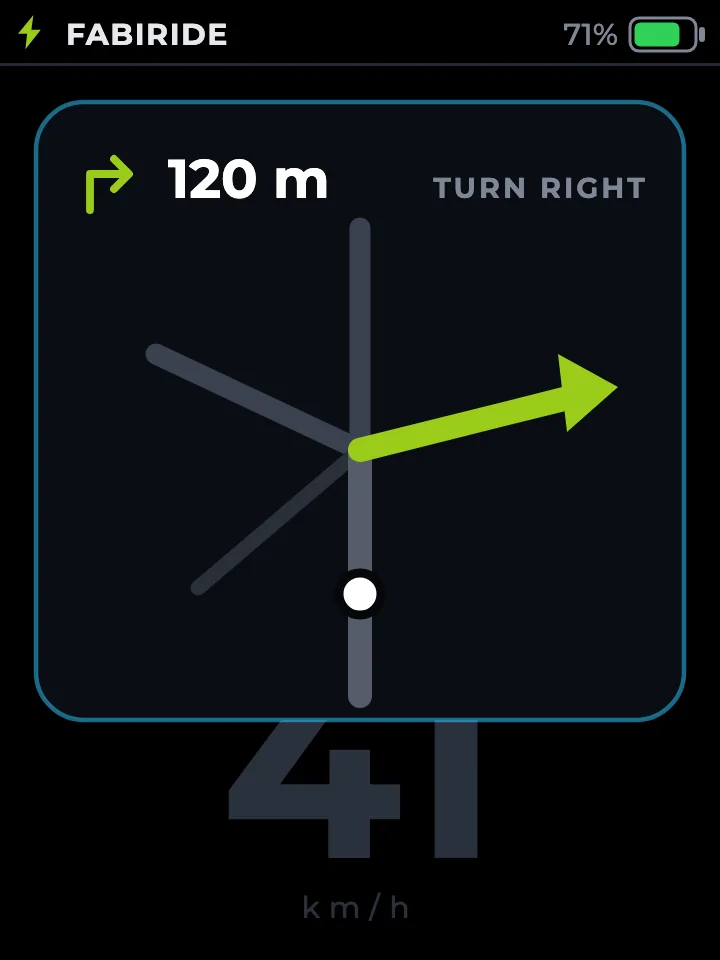
Tell the app where you are going, choose roads, bike paths or sidewalks, and check the distance, the time and every turn before you set off. On the way, the next turn and the distance to it sit on your dashboard, and shortly before each turn a small map of the junction opens by itself.
With the app connected, the display also shows a live map with your trail and the riders you are out with, and how far it is back to where the ride started, right beside the range your battery has left.
What else you get on the bars
Every ride recorded
The display records route, speed, assist and battery use on its own, you can replay each ride second by second in the app, and the range estimate learns from your own rides.
Music, calls and crash alerts
Track and artist on the screen, calls answered from the bars, group voice with your crew, and an SOS message with your location if the display detects a crash and you do not cancel it.
How to install Dash Pro on a MATE X
The installation video shows the whole fit on a stock MATE X, from opening the cable sleeve to closing it again. You need basic hand tools for the display and button clamps, and the harness plugs in between the bike's own connectors.
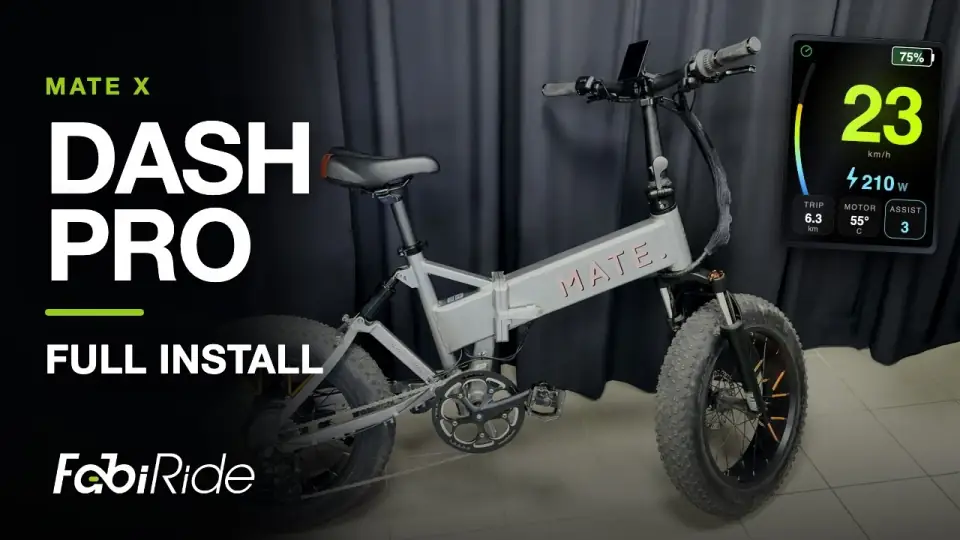
Installation · MATE XYouTube · 2:49The whole fit on a stock MATE X, step by step. Nothing on the bike is cut.
Step by step
-
Switch the bike offFirst, turn the MATE X off before you touch any connector.
-
Open the cable sleeveNext, open the sleeve on the handlebar and unplug the throttle and the stock display.
-
Remove the stock display and buttonsThen take the stock display and its button pad off the bar.
-
Mount the Dash Pro on the barClamp the bracket where you want to read the screen and fit the display.
-
Fit the control buttonsPut the three button remote under your left thumb, next to the grip.
-
Connect the displayJoin the connectors with the green marks, arrow to arrow, and push each plug fully home.
-
Connect the throttleAfter that, join both connectors with the yellow marks the same way and plug the throttle lead into the Dash Pro.
-
Close the sleeve and power onFinally, tuck the connections into the bundle, close the sleeve, switch on and open the FabiRide app.
When you order, choose the leads for your controller: the stock MATE X with the grey box and the ASI powered MATE X with the green box each have their own lead in the order list.
Working on your own bike is your responsibility. If you are unsure about any step, have it fitted by a competent mechanic.
A MATE X that knows where you are going
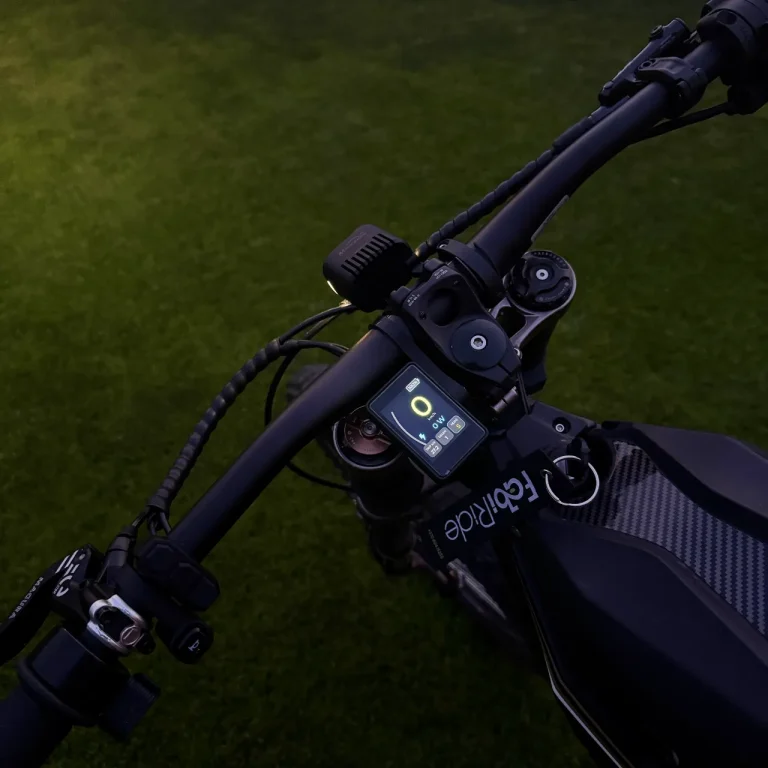
FabiRide Dash Pro brings the map, navigation and your phone to the MATE X handlebars. 24 month warranty, shipped worldwide.
MATE X display questions
Fitting and compatibility
Can I replace the stock MATE X display?
Yes. FabiRide Dash Pro replaces the stock MATE X display and its buttons. Because the harness of this MATE X display replacement plugs in between the bike's own connectors, nothing is cut and you can put the stock display back at any time.
Does Dash Pro work on a stock MATE X?
Yes. The display reads the grey factory controller as it is and recognises it automatically during setup.
Which MATE models does it fit?
The MATE X with its grey factory controller box, the bike shown in the installation video, and a MATE X converted to the green ASI BAC855. For a MATE X EVO, Fusion, City or any other model, send us a photo of the controller box before you order.
How do I tell the stock controller from the ASI one?
By colour. The factory MATE X controller is a grey box; the ASI BAC855 that some riders fit instead is green. The setup wizard shows both, so you can pick yours by looking at the bike.
Do I have to cut any wires?
No. Instead, the harness plugs in between the stock display and throttle connectors. Nothing is cut or reflashed, so the bike goes back to stock when you unplug it.
How long does the install take?
The installation video shows every step in under three minutes. Even so, plan an afternoon the first time, with basic hand tools for the display and button clamps.
Using it on the MATE X
How do I change the MATE X display settings?
In the FabiRide app, which works as your MATE X app. Pedal assist settings, lights, units and the speed limit are all there, while the assist level stays on the handlebar buttons. As a result, there is no menu to dig through on the bike.
Can I set a speed limit on the MATE X?
Yes, any speed you choose, set and lifted in the MATE X app, with a separate limit for each rider if you like. Also, holding all three handlebar buttons for two seconds puts the limit back on.
Is there an app for the MATE X?
With Dash Pro, yes. The FabiRide app becomes your MATE X app: it holds the bike's settings, the speed limit for each rider, navigation, your ride history and your crew.
Why is the ASI version limited to 1500 W?
The MATE X is a road e-bike, and its hub, spokes and brakes were never built for the full output of a BAC855. Therefore the display holds the controller at 1500 W at most, whatever is set in the app.
Does it show the battery?
Yes, on every dashboard, with a range estimate that learns from your own rides.
Does the map need anything extra?
Only the app running on your phone during the ride. The map, navigation, tracks and the turn-back alert all use it.
